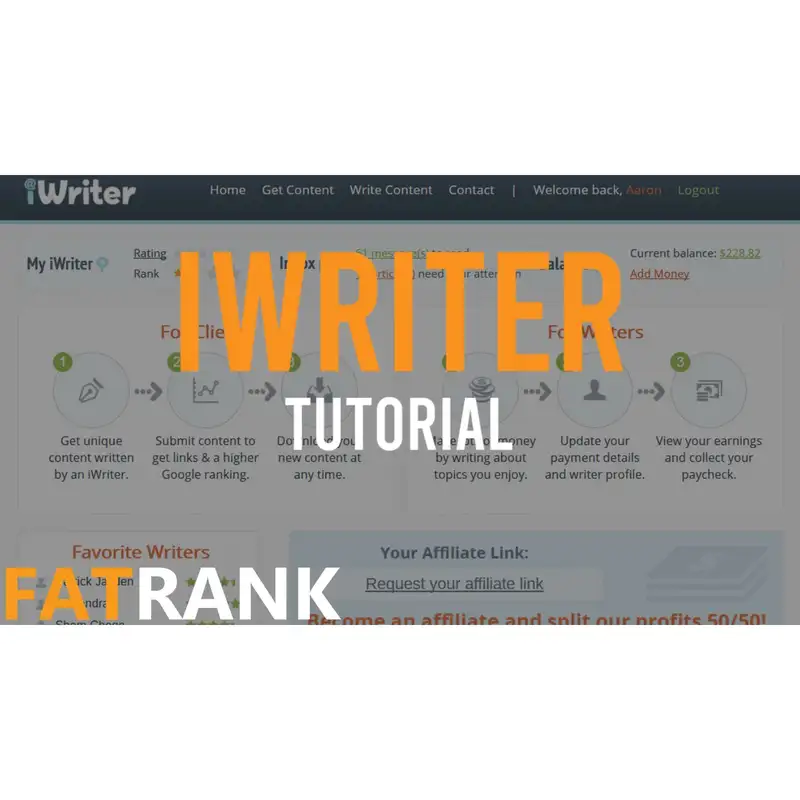
How To Use iWriter | FatRank Tutorial
Download MP3Dan Grant: Hi guys, it’s Dan here. Today I’m going to show you how to scale content using iWriter. For those who don’t know, iWriter is a platform that allows you to order content from writers across the internet, making it a great way to scale content quickly and professionally. I’m going to show you how to order content, approve content you like, and favourite writers so you can build a solid bank of reliable content creators going forward.
The first thing you do is click on “Content.” You’ll already need an account, so make sure that’s created beforehand. Once you’re logged in, simply select “Order Content.” At the top, you’ll see your account balance — you’ll want to add funds so you can order multiple articles.
For this example, we’re going to create a project titled Top 10 Sports Car Brands. This is where you enter the title of your article. For your own projects, this could be guest post titles, money-page content, Web 2.0 content — whatever you need written. You can also load templates if you already have them.
Next, you choose whether you want an article, a rewrite, or an eBook. The rewrite option is useful for skyscraper-style content, but for now we’ll stick with a standard article. Under “Business,” you pick your niche — in our case, automotive. Then choose the language, the number of articles, and your keywords. For this example, we’ll add brands like Audi, BMW, Ferrari, and Lamborghini. Add as many keywords as needed — this helps guide the writer.
Below that, you can add multiple articles for bulk orders, which is great when testing different writers. Then choose your word count — anywhere from 150 to 6,000 words. For Web 2.0 content you may want something shorter; for money pages you’d likely want 500+ words. For this example, we’ll use 500 words.
Next is writer level — an important part. The cost varies depending on the level you choose. Standard is the cheapest, Elite Plus is the most expensive. Premium is a good middle ground, and that’s what we’ll choose here. You can experiment with different levels to find affordable writers who still deliver great quality.
Then we have the project instructions — explain exactly what you want written. In our case, a comprehensive list of the top 10 sports car brands, including models and details. Be specific so the writer knows what to focus on.
The creative brief section lets you define your target audience and style. For sports cars, we might choose an audience of young male readers with an interest in cars. You can also specify objectives, things to avoid, or required mentions.
Further down, you’ll see an option to submit to specific writers — this becomes useful once you’ve favourited your top writers. After you’ve tested a variety of writers, you can assign future content specifically to your favourites for consistent quality. For now, we’ll leave this off so the system assigns a random writer.
Then you simply press Place Order to confirm. You’ll see the price based on the writer level and word count, and your order will appear on your dashboard.
Once the article is written, you’ll receive an email notification. Under “Pending Approval,” you’ll see all articles awaiting review. You can click “Review Content,” read through it, save it, and approve it if you’re happy.
If you really like a writer’s work, click on their username. You can view their profile, see ratings, and add them to your favourites. Once favourited, their profile will appear on your homepage under “Your Personal Favorite Writers,” making it easy to hire them again.
This system allows you to build a large bank of reliable writers who produce quality content at competitive prices, allowing you to scale content production for websites, Web 2.0s, guest posts, and more.
I hope you enjoyed this video and that it helps you scale your content using iWriter. Thanks for watching, and I’ll see you on the next one.
Creators and Guests